


Motionly: Image to Video AI
4.34.00 Reviews
App Specs
- Version
- 1.0.2
- Updated On
- License
- Free
- Downloads
- 50,000+
- Developer
- GeorgeGun
- Categories
- Entertainment
- Platform
- Android
Screenshots
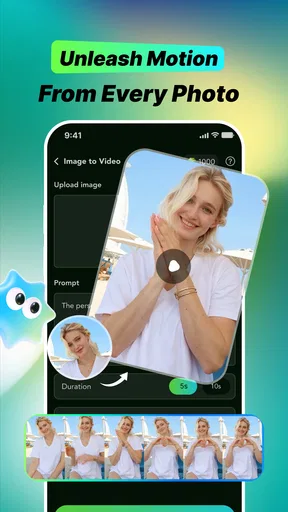
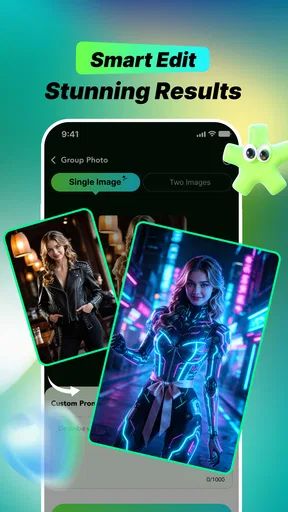
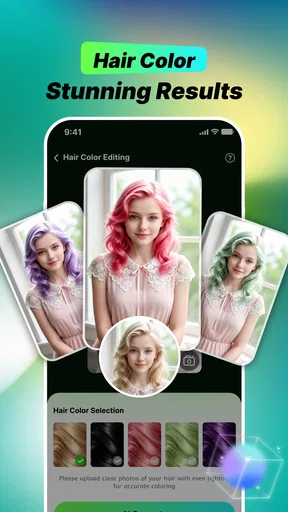
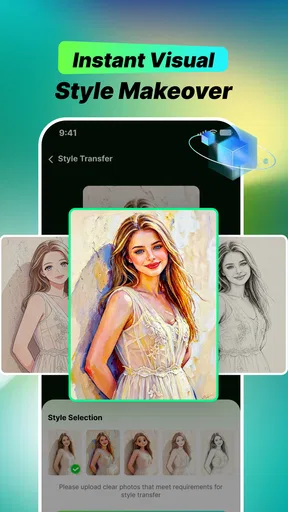
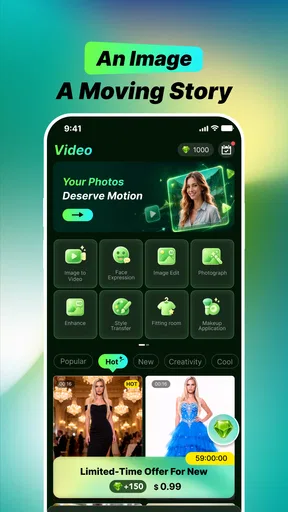
 Analysis by AppCompare
I tried Motionly: Image to Video AI with the question I would ask about any novelty-driven entertainment app: would I still open it after the first few impressive results? Its basic idea is easy to understand. You bring in a photo, choose a creative treatment, and let the app turn a still image into a short AI video. That makes it immediately appealing for social posts, personal memories, playful experiments, and quick visual messages.
My first impression was positive because the app removes much of the work normally associated with animation. I did not need to learn a timeline, keyframes, masking, or a complicated editing workflow before seeing a result. Motionly is made by GeorgeGun and sits firmly in the entertainment space, rather than trying to replace a full professional video editor. That distinction matters: its strength is fast visual transformation, not detailed production control.
The app is free to install, with optional purchases ranging from $1.99 to $99.99 per item. It carries a Mature 17+ rating, so I would not treat it as a general children’s creativity tool. It requires Android 7.0 or later, and its current version is 1.0.2. Those details make it accessible to many Android users, although the age rating is something families should take seriously before handing it over to younger users.
What Motionly feels like during the first week
The first few sessions are where the app makes its strongest case. A normal photograph can feel static and finished, while an AI video gives it a sense of movement and surprise. Even when the result is not perfect, the process is entertaining because the output changes the way I look at an ordinary image. A portrait, travel snapshot, pet photo, or old family picture can become a small visual experiment instead of remaining just another file in the gallery.
I found the template-and-effect approach more approachable than starting with a blank editing screen. Instead of deciding how to animate every object, I could begin with a visual direction and judge the result. This is useful for someone who wants a quick clip for a message or social feed but does not want to spend an evening learning a conventional editor. The app’s appeal comes from shortening the distance between an idea and something shareable.
A realistic everyday use would be preparing a birthday message. I could select a favorite picture, apply a suitable creative treatment, preview the animated result, and send a short video rather than a still image. The same workflow works for a vacation memory: one photo can become a more lively reminder without requiring several clips, music edits, or manual transitions. I would still inspect the output before sharing it, because an AI transformation can emphasize the wrong part of an image or make a face look less natural than expected.
The best source images are likely to be the ones with a clear subject and enough visual separation from the background. That is a practical tip rather than a promise of perfect results: a clean portrait or well-composed object gives an automated effect less ambiguity to interpret. Busy group photos, cluttered rooms, and images with partially hidden faces are more likely to produce a result that feels artificial. I would keep the original photo untouched and treat each generated clip as a separate creative version.
Worth Reading Before You Choose

Flipboard Shows What News Apps Must Do Beyond the Feed

Switching to Android Auto Means Rethinking Your Driving Routine

Google Calendar Makes a Crowded Week Easier to Manage

Ludo King Makes the Most of the Minutes Between Plans

Baby Panda World Brings Quick Play to Modern Phones, but Its Game Library Feels Busy

ESPN’s Live Game View Makes Following Close Games Easier
Another useful first-week habit is to test the same image with different creative directions instead of assuming the first output is the best one. The point is not simply to find the most dramatic animation. A subtle effect may work better for a personal memory, while a more exaggerated treatment may suit a joke or a public post. Comparing several results also helps reveal whether I actually like the app’s visual style or only enjoyed the surprise of the first generation.
Motionly has attracted over 50 thousand installs and holds a 4.3 average from around 40 ratings, with 4 reviews shown alongside that feedback. That gives the app some early visibility, but it is still a relatively small feedback pool. I would read those figures as a sign of initial interest, not proof that it will suit every type of image or remain useful for every user over time.
Where the novelty is genuinely useful
The novelty is not automatically a weakness. For people who rarely edit video, novelty can be the reason they finally create something. Motionly turns a familiar photo into a prompt for experimentation, and that makes it a good fit for casual creators who value speed over precision. It can also help someone who feels stuck creatively: instead of opening a blank project, they can start with an existing image and see what kind of motion the app suggests.
I can also see value in using it as a rough idea generator. A creator might animate a still concept before deciding whether a larger video project is worth making. A small business owner could explore a visual mood for a post, while a hobby photographer could compare how different treatments change the feeling of the same composition. I would not use the result as a final professional asset without checking it carefully, but it can provide a quick direction.
The important trade-off is control. Traditional editors take longer because they let me decide exactly when movement begins, what stays still, how a transition behaves, and how the final clip is refined. Motionly’s faster workflow is valuable precisely because it hides much of that complexity. If I want a specific camera move, exact timing, layered text, or frame-by-frame correction, a conventional editor is the better choice. Motionly is for guided transformation, not meticulous construction.
Whether it keeps earning attention after the first month
After the first burst of experimentation, the question changes from “What can this do?” to “What do I need it for?” That is where the app’s long-term value becomes more selective. If I regularly send animated greetings, publish visual updates, or maintain a photo-based social routine, the ability to turn fresh images into short videos can remain useful. If I only wanted to animate one favorite picture, the app may feel finished after that session.
The recurring value depends heavily on having a steady supply of suitable photos. Motionly does not replace the need for an idea, a good image, or a reason to share the result. It can refresh a routine, but it cannot create a durable content habit on its own. I would get more from it by assigning it a clear role, such as making one visual message for a weekly family chat or preparing occasional photo-based posts, rather than opening it randomly and expecting endless inspiration.
There is also a difference between novelty and usefulness. The first generated video may be exciting because it is unexpected. By the tenth attempt, I become more selective. I start asking whether the movement improves the image, communicates something, or simply adds motion for its own sake. That is a healthy filter. If the answer is usually “it just moves,” the app is likely to become a short-lived amusement rather than a regular part of my phone.
The in-app purchase structure affects that judgment. Since the app is free but offers individual items from $1.99 to $99.99, I would decide what kind of user I am before spending anything. A casual experiment does not justify a large purchase in my view. Someone who uses generated videos repeatedly may find a paid option easier to justify, but I would still evaluate each purchase against actual use rather than the excitement of a single attractive preview.
One practical way to avoid unnecessary spending is to establish a small test routine first. I would use the free experience, try several different photo types, and save only the outputs that I would genuinely share. If most results stay in the gallery, that is a clear signal to remain with the free option. If the app becomes part of a repeated creative workflow, then the cost can be considered as a tool expense rather than an impulse purchase. The key is to judge frequency, not the maximum number of available effects.
The maintenance burden is small, but not invisible
Motionly is easier to maintain than a full editing suite because its central workflow is compact. I do not need to organize a complex project library or remember a long chain of editing steps. Still, the app asks for a different kind of maintenance: choosing better source images, reviewing generated clips, removing weak results, and keeping track of which treatments actually suit my style.
That review step is important. AI-generated motion can make a photo feel more alive, but it can also distract from the subject. I would check faces, hands, edges, text inside the image, and any object that should remain stable. A clip that looks amusing in a quick preview may feel awkward when watched again. For personal sharing, that may be harmless; for a public post or work-related use, I would be much more cautious.
I would also keep expectations realistic about repeatability. Using the same photo more than once is a useful comparison exercise, but it can expose how dependent the experience is on the selected treatment. If I want a consistent visual identity across many posts, I would prefer a workflow with stronger manual control. Motionly is better at producing individual moments than guaranteeing a perfectly uniform series.
Its Android compatibility helps users with older devices because the minimum operating system is Android 7.0. However, compatibility alone does not tell me how every phone will feel during generation or preview. I would leave enough storage for the source images and exported results, and I would avoid treating the app as my only copy of an important photograph. Keeping originals in the regular photo library is a simple safeguard that applies especially well to a tool built around transforming personal images.
What can cause fatigue over time
The biggest source of fatigue is repetition. Many AI photo-to-video apps are immediately impressive because movement is unusual in a still image. Once that novelty wears off, identical visual habits can start to feel predictable. If every portrait receives a similar dramatic treatment, the results may blur together. I would use Motionly more sparingly than a normal photo editor and reserve it for images where motion adds a clear emotional or playful reason.
A second source of fatigue is the gap between a prompt-like expectation and the actual result. The store summary presents the idea of turning photos into AI videos with templates and effects, but the creative decision still belongs partly to the app. That can be fun when the interpretation works and frustrating when it does not. Users who want reliable, repeatable output may become impatient with trial and error, especially when a particular image matters.
There is also a sharing problem. A generated clip may look interesting to its creator because they know the original photo, while another person may see only a short effect without much context. I would therefore match the treatment to the audience. A playful family message can tolerate an exaggerated result. A memorial image, professional profile, or sensitive personal photograph deserves a gentler approach, and in some cases a still image is more respectful and effective.
The Mature 17+ content rating is another reason I would be selective about who uses the app and how. I would not assume that a simple photo animation concept makes it appropriate for every age group. Parents should check the store experience and supervise access where needed. For adults, the rating is a reminder to use judgment when importing personal images and sharing generated content, particularly when other people appear in the source photo.
Compared with a standard slideshow maker, Motionly offers more surprise and less predictable sequencing. Compared with a full video editor, it offers much less control but a far quicker starting point. Compared with simply applying filters to a photo, it creates a more noticeable change because the output is animated. None of those alternatives is universally better. The right choice depends on whether I value speed, control, consistency, or the playful uncertainty of an AI result.
Who should make room for it
I would recommend Motionly to an adult who wants quick, visually unusual clips from existing photos and is comfortable reviewing the result before sharing it. It makes particular sense for casual social creators, people preparing personal greetings, and anyone who enjoys experimenting without learning a conventional editing timeline. It is also useful for testing a visual idea before investing effort in a more controlled production.
I would be less enthusiastic for professional editors, photographers who need exact movement, and creators building a carefully consistent brand style. They may appreciate the speed for rough concepts, but they will probably reach the limits of template-based generation quickly. I would also skip it if my main goal is simply to trim videos, add precise captions, synchronize music, or assemble several clips. Those tasks belong more naturally to a dedicated editor.
For users concerned about cost, my advice is straightforward: start free, use real photos rather than hypothetical tests, and wait until the app has earned a repeated place in your routine. The wide range between the smallest and largest optional purchase means that “free to try” should not be confused with “free for every workflow.” I would only pay after identifying a specific recurring need, such as a regular stream of animated photo posts.
For users concerned about privacy or personal boundaries, I would choose test images carefully at first. Use a non-sensitive photo to understand the workflow, inspect the result, and decide whether the visual treatment feels trustworthy enough for more personal material. I would avoid uploading images of other people casually, especially children, unless I have a clear reason and permission. That is not a criticism unique to this app; it is sensible behavior for any service that transforms personal images.
My long-term verdict on Motionly
Motionly succeeds when I treat it as a small creative instrument rather than a complete video studio. Its strongest quality is immediacy: a photo can become an animated experiment without the intimidating setup of a conventional editor. The templates and effects make the first week enjoyable, and the free entry point lowers the risk of trying it. GeorgeGun has shaped the experience around entertainment and visual surprise, and that focus is easy to understand from the first session.
Its lasting value is conditional. I would keep it installed if I had a recurring reason to make animated greetings, photo-based posts, or quick visual concepts. I would not keep opening it merely because every photo can be animated. Once the initial surprise fades, weak images, repeated styles, uncertain results, and optional purchase costs become more noticeable. The app earns long-term space when it supports a habit, not when it is expected to supply the habit by itself.
My most useful rule is to ask whether movement improves the message. If it adds warmth to a birthday greeting, gives a travel memory extra energy, or helps me explore a visual idea, Motionly is doing something worthwhile. If it only makes a still image busier, I would return to the original photo or use a more controlled editor. That simple test prevents the novelty from taking over the decision.
Overall, I see Motionly as a good free entertainment app for curious adults who want fast AI-assisted photo animation and understand its limits. I would recommend trying it with a small set of well-composed images, comparing treatments instead of accepting the first result, and delaying purchases until a genuine routine appears. Its real strength is turning a photo into a quick creative prompt; its real weakness is that the prompt may not become a lasting workflow.
Pros
- Turns still images into engaging short videos with minimal effort.
- Offers creative motion effects suitable for social media posts.
- Simple interface makes it accessible to beginners.
- Can help refresh old photos with dynamic visual movement.
- Useful for creating quick promotional or personal video content.
Cons
- AI results can vary depending on image quality and composition.
- Some advanced effects may require a subscription or paid credits.
- Generated motion may occasionally look unnatural or distorted.
- Processing times can increase for complex images or busy periods.
- Privacy policies should be checked before uploading personal photos.
FAQs for Motionly: Image to Video AI
What is Motionly: Image to Video AI and what can I create with it?
Motionly: Image to Video AI is designed to turn still images into short animated videos using artificial intelligence. After importing a photo, you can apply movement and visual effects that make the subject appear more dynamic. It can be useful for social media posts, promotional content, presentations, creative experiments, and personal projects, although the final result depends heavily on the quality and composition of the original image.
Is Motionly: Image to Video AI free to download and use?
The app may be available to download at no initial cost, but some features, effects, export options, or usage credits can be restricted behind in-app purchases or a subscription. Before starting a project, check the pricing page and trial conditions carefully, especially if you are offered a free trial that automatically renews. Availability and plan details can also vary between Android and iOS.
Do I need an internet connection to use Motionly?
An internet connection is generally required for the AI processing because image animation is usually performed through online servers rather than entirely on the phone. Uploading the source image, generating the animation, and downloading the finished video may all require a stable connection. Processing times can vary depending on image size, server demand, and the complexity of the selected effect.
What kind of images work best in Motionly: Image to Video AI?
For the most convincing results, use clear, well-lit images with the main subject in focus and enough space around it. Portraits, product photos, landscapes, and simple compositions are often easier for the AI to interpret than crowded or blurry pictures. Images with covered faces, extreme angles, heavy text, or multiple overlapping subjects may produce unexpected motion or visual distortions.
Are there privacy or copyright concerns when uploading images to Motionly?
Before uploading personal or commercial images, review Motionly’s privacy policy and terms of service to understand how files are stored, processed, and deleted. Avoid using photos containing sensitive personal information unless you are comfortable submitting them to the service. You should also have permission to use any image featuring other people, brands, artwork, or copyrighted material, particularly when creating content for public or commercial use.


